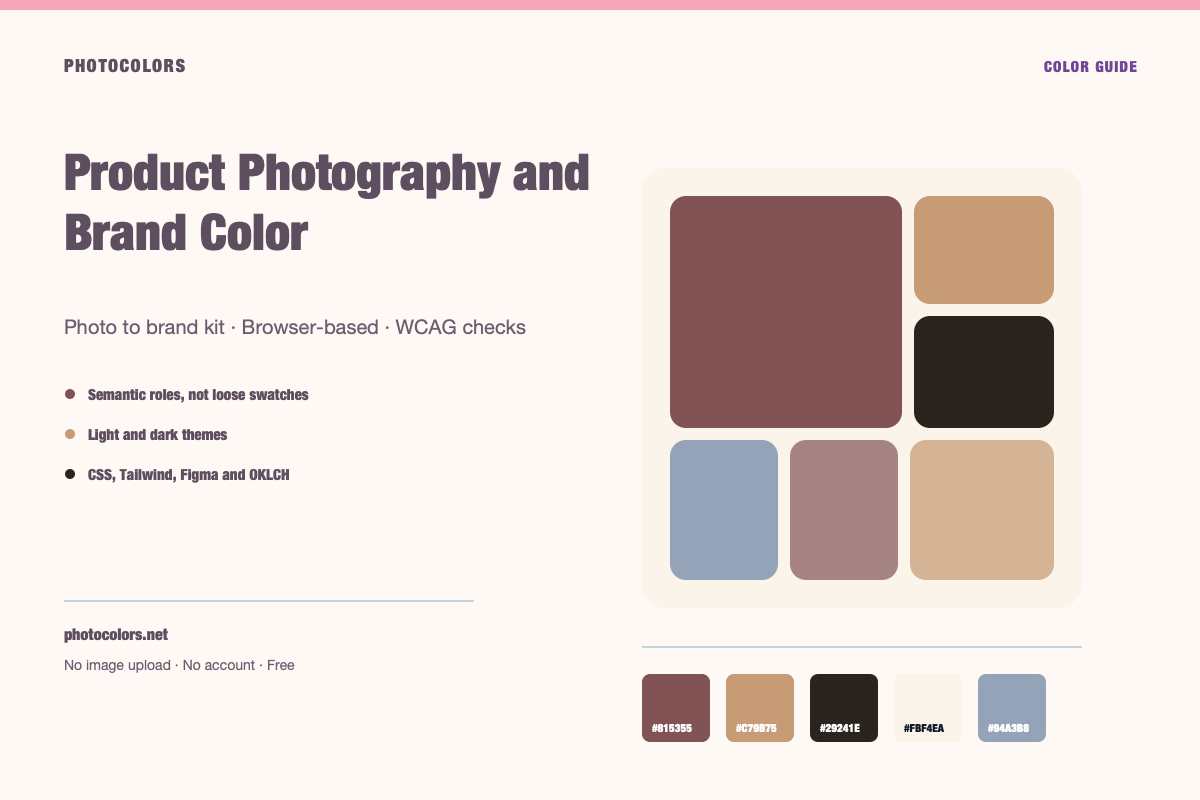
What this guide covers
- Product photos are evidence, not a complete brand system.
- Separate the product color from the lighting and the background.
- Use the palette to support the product, not to repaint it.
- Test the palette with real merchandising content.
- Document which colors are product colors and which are brand colors.
Live tool
Try the workflow
Everything runs in your browser. The image is never uploaded, and no account is required.
Your palette
sample-palette
Developer exports
:root {
  --color-primary: #815355;
  --color-primary-foreground: #FFFFFF;
  --color-secondary: #FBF4EA;
  --color-accent: #C79B75;
  --color-neutral: #29241E;
  --color-background: #FBF4EA;
  --color-surface: #FDFAF6;
  --color-text: #111827;
  --color-muted-text: #111827;
  --color-border: #C0BAB1;
  --color-success: #16A34A;
  --color-warning: #C79B75;
  --color-danger: #C79B75;
}

[data-theme="dark"] {
  --color-background: #29241E;
  --color-surface: #1A191B;
  --color-text: #FFFFFF;
  --color-muted-text: #FFFFFF;
  --color-border: #29241E;
  --color-primary: #BF9C9D;
  --color-primary-foreground: #111827;
}export const photocolors = {
colors: {
primary: {
DEFAULT: "#815355",
foreground: "#FFFFFF"
},
secondary: "#FBF4EA",
accent: "#C79B75",
neutral: "#29241E",
background: "var(--color-background)",
surface: "var(--color-surface)",
text: "var(--color-text)",
muted: "var(--color-muted-text)",
border: "var(--color-border)",
success: "#16A34A",
warning: "#C79B75",
danger: "#C79B75"
}
};:root {
--background: #FBF4EA;
--foreground: #111827;
--card: #FDFAF6;
--card-foreground: #111827;
--primary: #815355;
--primary-foreground: #FFFFFF;
--secondary: #FBF4EA;
--secondary-foreground: #111827;
--accent: #C79B75;
--accent-foreground: #111827;
--muted: #FCF7F0;
--muted-foreground: #111827;
--border: #C0BAB1;
--destructive: #C79B75;
--destructive-foreground: #FFFFFF;
--ring: #815355;
}
.dark {
--background: #29241E;
--foreground: #FFFFFF;
--card: #1A191B;
--card-foreground: #FFFFFF;
--primary: #BF9C9D;
--primary-foreground: #111827;
--secondary: #FBF4EA;
--secondary-foreground: #111827;
--accent: #C79B75;
--accent-foreground: #111827;
--muted: #221F1D;
--muted-foreground: #FFFFFF;
--border: #29241E;
--destructive: #C79B75;
--destructive-foreground: #FFFFFF;
--ring: #BF9C9D;
}{
"color": {
"primary": {
"value": "#815355",
"type": "color"
},
"secondary": {
"value": "#FBF4EA",
"type": "color"
},
"accent": {
"value": "#C79B75",
"type": "color"
},
"neutral": {
"value": "#29241E",
"type": "color"
},
"background": {
"value": "#FBF4EA",
"type": "color"
},
"surface": {
"value": "#FDFAF6",
"type": "color"
},
"text": {
"value": "#111827",
"type": "color"
},
"mutedText": {
"value": "#111827",
"type": "color"
},
"success": {
"value": "#16A34A",
"type": "color"
},
"warning": {
"value": "#C79B75",
"type": "color"
},
"danger": {
"value": "#C79B75",
"type": "color"
}
},
"dark": {
"background": {
"value": "#29241E",
"type": "color"
},
"surface": {
"value": "#1A191B",
"type": "color"
},
"text": {
"value": "#FFFFFF",
"type": "color"
},
"mutedText": {
"value": "#FFFFFF",
"type": "color"
}
}
}{
"primary": "oklch(49.39% 0.0618 16.7)",
"secondary": "oklch(96.99% 0.0152 77.1)",
"accent": "oklch(72.13% 0.0738 62.1)",
"neutral": "oklch(26.38% 0.0132 72.3)",
"background": "oklch(96.99% 0.0152 77.1)",
"foreground": "oklch(21.01% 0.0318 264.7)",
"surface": "oklch(98.63% 0.0062 75.4)",
"success": "oklch(62.71% 0.1699 149.2)",
"warning": "oklch(72.13% 0.0738 62.1)",
"danger": "oklch(72.13% 0.0738 62.1)"
}The photo is already part of the brand
On a product page, the photograph is often the largest color field on the screen. Even if the interface uses a neutral palette, the product photo dominates the visual impression. That makes the photo a color decision whether or not anyone planned it.
A brand palette that ignores the product photo will fight the page. A palette that copies the photo too literally may be too warm, too saturated or too specific to one SKU. The goal is a system that supports the photo without becoming a transcript of it.
This is especially important for food, beauty, fashion and home goods, where the product color is part of the purchase decision. The interface should make the product look accurate and desirable, not tint it with the brand.
Choose photos that represent the product truth
Use a photo with accurate white balance and minimal color grading. A product that looks warm and golden in one photo and cool and gray in another will produce two different palettes and confuse the customer.
If the product comes in several colors, choose the hero SKU first and build the interface palette around it. Then check that the palette does not clash with the other SKUs. A neutral interface is often the safest choice for a multicolor catalog.
Avoid using a lifestyle photo as the only color source. The environment may carry more color than the product. Use a clean product shot for the palette and a lifestyle shot for the mood.
- Accurate white balance first.
- Hero SKU first, then check the rest of the catalog.
- Clean product shot for color, lifestyle shot for mood.
- Avoid heavy filters on the source image.
Separate product colors from lighting
A product photo contains at least three color layers: the product itself, the lighting and the background. The extractor sees all three. Your job is to decide which layer each color belongs to.
The product color is usually the most saturated or most distinctive color in the frame. The lighting adds warm or cool highlights. The background may be a seamless paper, a table, a wall or a prop. None of those are automatically brand colors.
If the product is white or black, the palette may be mostly neutral. That is fine. The brand color can come from the packaging, the label, the prop or a deliberate accent, not from the product body.
Build a palette that supports the product
Start with a neutral page background that lets the product photo be the brightest or most saturated element. Then choose a text color that is readable and a primary action color that does not compete with the product.
If the product is a vivid orange, a vivid orange button will disappear into the photo. A deep neutral or a complementary accent may be a better action color. The primary action does not have to match the product; it has to be distinguishable.
Use the product color as an accent for badges, highlights and section markers. That keeps the connection without turning the whole page into a monochrome orange field.
The product should be the hero of the photo. The interface palette should be the stage, not a second hero.
Test the palette with real merchandising content
A palette can look great on a blank page and fail on a product grid. Test it with a hero image, a grid of six products, a price, a badge, a review count and a call-to-action. The grid is where competing product colors will expose a weak interface palette.
Check the badge colors first. A sale badge, a new-arrival badge and a low-stock badge often use the same accent. If the badges compete with the product photos, reduce their saturation or use a neutral treatment.
Then check the dark mode. Product photography often has bright highlights that glow on a dark surface. A slightly lighter dark background can reduce the contrast and make the photos feel more natural.
When the product has many colors
A multicolor catalog needs a neutral interface. If every product has its own color, the page cannot take on the color of one SKU without misrepresenting the others. Use a neutral background, a consistent text color and a brand accent that is separate from the product colors.
The product color can still influence the photography direction, the packaging and the campaign assets. It does not need to become the button color.
If you want a color-coded catalog, use a consistent swatch system and a text label. Do not rely on color alone to communicate the variant.
A checklist for product-photo palettes
Before you ship, confirm that the product looks accurate, the text is readable, the action color is distinguishable and the palette works across the catalog. Then check the mobile view, where the photo often fills the entire width.
Document which colors are product colors and which are interface colors. A future campaign may change the product color without changing the brand system, and the documentation will prevent a unnecessary redesign.
Finally, review the palette with a real customer task: find a product, understand the price, choose a variant and add it to the cart. If the colors help that path, they are doing their job.