Extract colors
Image to Color Palette Generator
Drop an image and get a color palette you can actually use: dominant colors, semantic UI roles, light and dark themes, contrast checks, and copy-ready tokens.
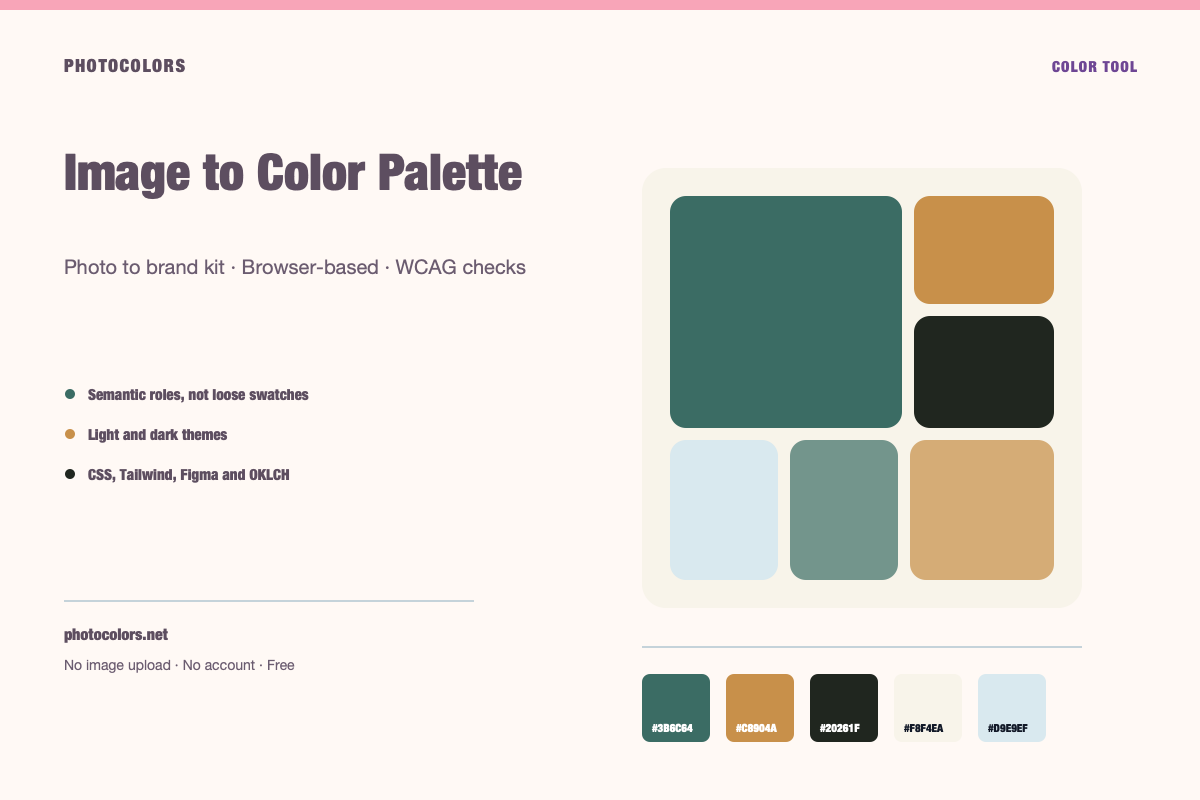
PhotoColors extracts dominant colors from an image in your browser, then maps them into primary, secondary, accent and neutral roles. The image is never uploaded, and every palette includes WCAG contrast checks and developer exports.
Live tool
Try it with your image
Everything runs in your browser. The image is never uploaded, and no account is required.
Your palette
sample-palette
Developer exports
:root {
  --color-primary: #3B6C64;
  --color-primary-foreground: #FFFFFF;
  --color-secondary: #C8904A;
  --color-accent: #915A46;
  --color-neutral: #20261F;
  --color-background: #F8F4EA;
  --color-surface: #FCFAF6;
  --color-text: #111827;
  --color-muted-text: #111827;
  --color-border: #BCBAB1;
  --color-success: #16A34A;
  --color-warning: #C8904A;
  --color-danger: #DC2626;
}

[data-theme="dark"] {
  --color-background: #20261F;
  --color-surface: #151A1C;
  --color-text: #FFFFFF;
  --color-muted-text: #FFFFFF;
  --color-border: #20261F;
  --color-primary: #95C5BE;
  --color-primary-foreground: #111827;
}export const photocolors = {
colors: {
primary: {
DEFAULT: "#3B6C64",
foreground: "#FFFFFF"
},
secondary: "#C8904A",
accent: "#915A46",
neutral: "#20261F",
background: "var(--color-background)",
surface: "var(--color-surface)",
text: "var(--color-text)",
muted: "var(--color-muted-text)",
border: "var(--color-border)",
success: "#16A34A",
warning: "#C8904A",
danger: "#DC2626"
}
};:root {
--background: #F8F4EA;
--foreground: #111827;
--card: #FCFAF6;
--card-foreground: #111827;
--primary: #3B6C64;
--primary-foreground: #FFFFFF;
--secondary: #C8904A;
--secondary-foreground: #111827;
--accent: #915A46;
--accent-foreground: #FFFFFF;
--muted: #FAF7F0;
--muted-foreground: #111827;
--border: #BCBAB1;
--destructive: #DC2626;
--destructive-foreground: #FFFFFF;
--ring: #3B6C64;
}
.dark {
--background: #20261F;
--foreground: #FFFFFF;
--card: #151A1C;
--card-foreground: #FFFFFF;
--primary: #95C5BE;
--primary-foreground: #111827;
--secondary: #C8904A;
--secondary-foreground: #111827;
--accent: #CAA091;
--accent-foreground: #111827;
--muted: #1B201E;
--muted-foreground: #FFFFFF;
--border: #20261F;
--destructive: #DC2626;
--destructive-foreground: #FFFFFF;
--ring: #95C5BE;
}{
"color": {
"primary": {
"value": "#3B6C64",
"type": "color"
},
"secondary": {
"value": "#C8904A",
"type": "color"
},
"accent": {
"value": "#915A46",
"type": "color"
},
"neutral": {
"value": "#20261F",
"type": "color"
},
"background": {
"value": "#F8F4EA",
"type": "color"
},
"surface": {
"value": "#FCFAF6",
"type": "color"
},
"text": {
"value": "#111827",
"type": "color"
},
"mutedText": {
"value": "#111827",
"type": "color"
},
"success": {
"value": "#16A34A",
"type": "color"
},
"warning": {
"value": "#C8904A",
"type": "color"
},
"danger": {
"value": "#DC2626",
"type": "color"
}
},
"dark": {
"background": {
"value": "#20261F",
"type": "color"
},
"surface": {
"value": "#151A1C",
"type": "color"
},
"text": {
"value": "#FFFFFF",
"type": "color"
},
"mutedText": {
"value": "#FFFFFF",
"type": "color"
}
}
}{
"primary": "oklch(49.41% 0.0551 182.3)",
"secondary": "oklch(69.42% 0.1102 70.3)",
"accent": "oklch(52.41% 0.0792 40.7)",
"neutral": "oklch(26.01% 0.0155 141.1)",
"background": "oklch(96.75% 0.0139 88.7)",
"foreground": "oklch(21.01% 0.0318 264.7)",
"surface": "oklch(98.55% 0.0057 84.6)",
"success": "oklch(62.71% 0.1699 149.2)",
"warning": "oklch(69.42% 0.1102 70.3)",
"danger": "oklch(57.71% 0.2152 27.3)"
}What an image-to-palette tool actually does
An image-to-color-palette tool reads the pixels in a picture and groups similar colors together. The goal is not to list every color in the file. It is to find the small set of colors that carry the image's visual identity, then present them in a form a person can use.
That sounds simple, but the output is only useful when it survives the next step. A five-swatch strip is inspiration. A product interface needs a primary action color, a calm surface, readable body text, a border, a muted label, and states for success, warning and danger. PhotoColors starts with the photograph and ends with those decisions.
The tool is built for brand exploration, landing-page design, product photography, moodboards, and the common case where a founder has a beautiful image but no formal color system.
Dominant colors are not automatically a brand system
The most common mistake is treating the top five colors as a finished palette. A sky photograph may produce four blues and a white, which is accurate but not a usable interface palette. A logo may produce a strong brand color plus three anti-aliased edge colors that should never become buttons.
A useful system separates color from job. The same green can be a primary action, a success state, or a decorative accent. Those are three different decisions, and each one needs a different contrast requirement.
PhotoColors makes that separation explicit. It ranks the extracted colors, assigns roles, and then checks the pairs that people actually read: body text on background, muted text on background, and button text on the primary color.
Use the extracted palette as evidence, not as a final answer. The role table is where the design decision happens.
How the browser extraction works
When you choose a file, the browser decodes it locally, draws a scaled copy onto a canvas, and reads the pixel data. The sampler groups similar RGB values into buckets, scores each bucket by frequency and visual balance, and keeps colors that are far enough apart to be distinguishable.
The process is deterministic. The same image produces the same palette every time, which makes it easy to compare versions, document a decision, or re-run an audit. There is no generative model guessing at a mood, and no image is sent to a server.
The current tool accepts JPG, PNG, WebP, GIF, and BMP files up to 18 MB. HEIC files from an iPhone need to be exported as JPG or PNG first, because most desktop browsers cannot decode HEIC reliably.
What to check before you ship the palette
Start with the primary color. Does it still look like the brand when it sits next to white, and when it sits next to a dark surface? A color that only works on one background is a decorative color, not an action color.
Next, check the text pairs. WCAG AA asks for 4.5:1 for normal text and 3:1 for large text. AAA raises those to 7:1 and 4.5:1. The ratio is a hard number, not a matter of taste, and it should be checked before the palette is handed to a developer.
Finally, look at the neutral scale. Most of a real interface is neutral: backgrounds, cards, borders, dividers and muted labels. If the neutral ramp is muddy or lacks enough separation, the product will feel flat even when the accent color is beautiful.
- Primary color: readable button text on both light and dark surfaces.
- Surface colors: enough separation between page, card and border.
- Muted text: still readable at small sizes.
- Status colors: distinguishable from the primary action color.
Common mistakes when extracting a palette
The first mistake is using a filtered photo. A heavy Instagram filter may look great, but it changes the colors you are trying to document. Use the original file when the goal is brand accuracy.
The second is ignoring white balance. A warm indoor photo can turn a neutral gray into a beige, and a cool shadow can turn a green into a teal. If the image is the only reference, compare it with a second photo of the same subject in daylight.
The third is forcing every extracted color into the interface. Some colors are atmosphere. They belong in photography, illustration or a hero background, not in a button. A good palette leaves things out.
FAQ
Image to Color Palette Generator FAQ
Does PhotoColors upload my image?
No. The image is decoded and sampled in your browser with the Canvas API. The file is not sent to a server. If you ask for a saved-kit email, only the palette colors and your email address are stored.
Can I extract colors from a logo instead of a photo?
Yes. A transparent PNG usually gives the cleanest result. Anti-aliased edges can add unwanted colors, so check the palette and ignore colors that only appear at the edge of the mark.
Which image formats are supported?
JPG, PNG, WebP, GIF and BMP up to 18 MB. HEIC files from an iPhone should be exported as JPG or PNG first because most desktop browsers cannot decode HEIC reliably.
Does the tool work on a phone?
Yes. The upload zone works in mobile browsers, and there is a camera entry point for taking a photo directly. Large images may take a moment to decode on older devices.
Can I export the palette to Tailwind, CSS or Figma?
Yes. Every palette can be copied as CSS variables, a Tailwind color object, shadcn theme variables, Figma-style JSON tokens, or OKLCH values.
Is the image-to-color-palette tool free?
Yes. There is no account, no credit system and no paid plan. The optional saved-kit email is a convenience, not a paywall.
Keep going
Related tools and guides
Logo Color Extractor
A logo color extractor reads the pixels in a logo file and lists its dominant colors. Use a transparent PNG, ignore anti-aliased edge colors, and treat the strongest brand color as a starting point rather than a finished interface palette.
Color Palette From Photo
Choose a photo with a clear color story, upload it, and review the extracted dominant colors. A good photo palette captures the image's mood; a good interface palette also passes contrast checks and includes enough neutral separation.
Brand Color Picker
Use a brand color picker to choose an anchor color, then assign it to roles and test it against real text and surface pairs. A single HEX value is not a brand system; the roles and contrast checks are what make it usable.
How to Turn a Photo Into a Color Palette That Survives Production
Extracting five colors takes seconds. Making those colors work in a real interface takes a few deliberate decisions. This is the workflow we use.
Product Photography and Brand Color: A Practical Workflow
Your product photos are already making color decisions. The question is whether those decisions are intentional, consistent and usable outside the photograph.