Photo to palette
Color Palette From Photo
A photograph can carry a mood that a flat color picker cannot. Turn that mood into a palette, then check whether it can survive real UI text and buttons.
Choose a photo with a clear color story, upload it, and review the extracted dominant colors. A good photo palette captures the image's mood; a good interface palette also passes contrast checks and includes enough neutral separation.
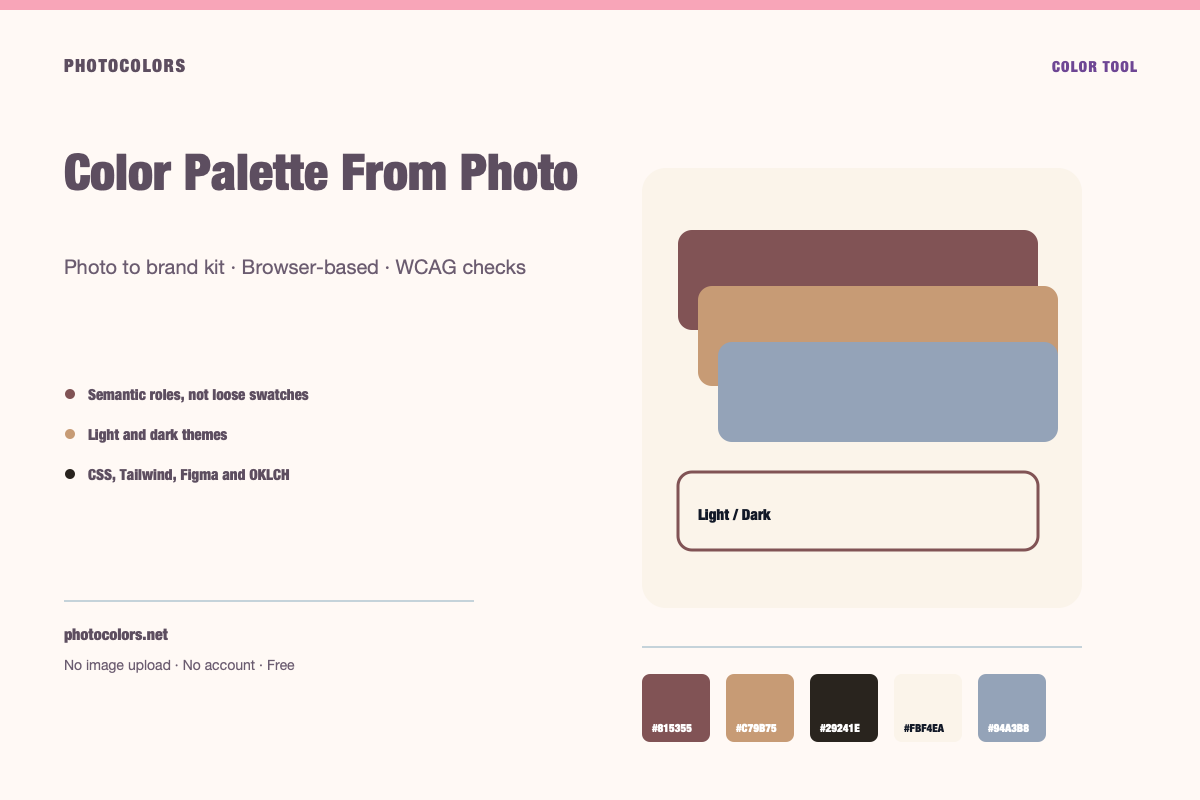
Live tool
Try it with your image
Everything runs in your browser. The image is never uploaded, and no account is required.
Your palette
sample-palette
Developer exports
:root {
  --color-primary: #815355;
  --color-primary-foreground: #FFFFFF;
  --color-secondary: #FBF4EA;
  --color-accent: #C79B75;
  --color-neutral: #29241E;
  --color-background: #FBF4EA;
  --color-surface: #FDFAF6;
  --color-text: #111827;
  --color-muted-text: #111827;
  --color-border: #C0BAB1;
  --color-success: #16A34A;
  --color-warning: #C79B75;
  --color-danger: #C79B75;
}

[data-theme="dark"] {
  --color-background: #29241E;
  --color-surface: #1A191B;
  --color-text: #FFFFFF;
  --color-muted-text: #FFFFFF;
  --color-border: #29241E;
  --color-primary: #BF9C9D;
  --color-primary-foreground: #111827;
}export const photocolors = {
colors: {
primary: {
DEFAULT: "#815355",
foreground: "#FFFFFF"
},
secondary: "#FBF4EA",
accent: "#C79B75",
neutral: "#29241E",
background: "var(--color-background)",
surface: "var(--color-surface)",
text: "var(--color-text)",
muted: "var(--color-muted-text)",
border: "var(--color-border)",
success: "#16A34A",
warning: "#C79B75",
danger: "#C79B75"
}
};:root {
--background: #FBF4EA;
--foreground: #111827;
--card: #FDFAF6;
--card-foreground: #111827;
--primary: #815355;
--primary-foreground: #FFFFFF;
--secondary: #FBF4EA;
--secondary-foreground: #111827;
--accent: #C79B75;
--accent-foreground: #111827;
--muted: #FCF7F0;
--muted-foreground: #111827;
--border: #C0BAB1;
--destructive: #C79B75;
--destructive-foreground: #FFFFFF;
--ring: #815355;
}
.dark {
--background: #29241E;
--foreground: #FFFFFF;
--card: #1A191B;
--card-foreground: #FFFFFF;
--primary: #BF9C9D;
--primary-foreground: #111827;
--secondary: #FBF4EA;
--secondary-foreground: #111827;
--accent: #C79B75;
--accent-foreground: #111827;
--muted: #221F1D;
--muted-foreground: #FFFFFF;
--border: #29241E;
--destructive: #C79B75;
--destructive-foreground: #FFFFFF;
--ring: #BF9C9D;
}{
"color": {
"primary": {
"value": "#815355",
"type": "color"
},
"secondary": {
"value": "#FBF4EA",
"type": "color"
},
"accent": {
"value": "#C79B75",
"type": "color"
},
"neutral": {
"value": "#29241E",
"type": "color"
},
"background": {
"value": "#FBF4EA",
"type": "color"
},
"surface": {
"value": "#FDFAF6",
"type": "color"
},
"text": {
"value": "#111827",
"type": "color"
},
"mutedText": {
"value": "#111827",
"type": "color"
},
"success": {
"value": "#16A34A",
"type": "color"
},
"warning": {
"value": "#C79B75",
"type": "color"
},
"danger": {
"value": "#C79B75",
"type": "color"
}
},
"dark": {
"background": {
"value": "#29241E",
"type": "color"
},
"surface": {
"value": "#1A191B",
"type": "color"
},
"text": {
"value": "#FFFFFF",
"type": "color"
},
"mutedText": {
"value": "#FFFFFF",
"type": "color"
}
}
}{
"primary": "oklch(49.39% 0.0618 16.7)",
"secondary": "oklch(96.99% 0.0152 77.1)",
"accent": "oklch(72.13% 0.0738 62.1)",
"neutral": "oklch(26.38% 0.0132 72.3)",
"background": "oklch(96.99% 0.0152 77.1)",
"foreground": "oklch(21.01% 0.0318 264.7)",
"surface": "oklch(98.63% 0.0062 75.4)",
"success": "oklch(62.71% 0.1699 149.2)",
"warning": "oklch(72.13% 0.0738 62.1)",
"danger": "oklch(72.13% 0.0738 62.1)"
}What a photo palette is good for
Photo palettes are excellent for travel brands, food and beverage packaging, interior design, fashion lookbooks, editorial layouts, and any product where the photography is part of the purchase decision. The palette gives the rest of the page a way to echo the image instead of fighting it.
They are less useful as a complete UI system. A sunset photo may produce a beautiful orange, a dusty pink and a deep blue, but none of those colors may be readable as small text on a white card. That is why the palette needs a role layer.
The strongest workflow is to use the photo palette for brand atmosphere and marketing surfaces, then derive a quieter neutral system for the product UI. The two can share a family without being identical.
Choose a photo with a clear color story
A photo with one dominant subject and a limited background usually produces a more coherent palette than a busy street scene. If the image contains ten equally important colors, the extractor has to guess which ones matter.
Crop to the part of the image that represents the mood you want. A food photo may be mostly white tablecloth with a small plate of color; cropping closer to the plate will produce a more useful palette.
Avoid heavily filtered images when you need brand accuracy. Filters are a creative choice, but they change the colors you are documenting. If the filter is part of the brand, use the filtered image intentionally and note it.
The extraction is deterministic, not a mood guess
PhotoColors does not ask a generative model to invent a palette. It samples the image, groups similar colors, and ranks them with a deterministic algorithm. The same file produces the same result, which makes it easy to compare two photos or two versions of a brand asset.
That matters for trust. If a client asks why a color was chosen, you can point to the image and the extraction. You can re-run it. You can compare it with a second photo. The decision is inspectable.
The trade-off is that a deterministic extractor will not invent a color that is not in the photo. If you want a creative leap, use the extracted palette as a starting point and adjust it deliberately.
Photo-specific pitfalls
White balance is the biggest one. A warm indoor light can turn a neutral wall into a cream, and a cool shadow can turn a green into a teal. If the exact color matters, compare the photo with a daylight reference.
Skin tones need special care. A palette built from a portrait may include a beautiful warm tone that is flattering in a photograph but too low-contrast for body text. Keep skin tones in the photography layer and choose a separate text color.
Finally, watch for large areas of pure white or pure black. They often dominate the frequency count without carrying any brand meaning. The extractor filters extremes, but a manual review is still worthwhile.
- Use the original file, not a compressed screenshot.
- Crop to the subject that carries the mood.
- Compare warm and cool photos of the same subject.
- Do not use skin tones as body text colors.
From inspiration to interface
Take the extracted palette and decide what each color is allowed to do. The most saturated color often becomes the primary action, the darkest color becomes text, the lightest becomes the page background, and the remaining colors become accents or illustration colors.
Then test the interface in both light and dark mode. A color that feels warm and inviting on a cream background may become muddy on a dark surface. PhotoColors adjusts the dark theme and re-checks the contrast pairs so you can see the difference before you ship.
The goal is not to make the interface look exactly like the photo. The goal is to make the interface feel like it belongs to the same world.
FAQ
Color Palette From Photo FAQ
Can I generate a color palette from any photo?
Yes, but the result is only as good as the photo's color story. Images with a clear subject and a limited palette usually produce more useful results than busy scenes.
Does the tool store my photo?
No. The photo is sampled locally in the browser. Only the extracted palette colors can be stored if you choose to email yourself a saved kit.
Can I use a photo from the internet?
Only if you have the right to use it. Color extraction does not grant copyright permission. Use your own photography or properly licensed images.
Why does the same photo produce different colors in another tool?
Different tools use different sampling sizes, color spaces and ranking rules. PhotoColors uses a deterministic browser-side histogram, so its results are reproducible within this tool.
Can I turn a photo palette into a Tailwind theme?
Yes. The generated palette can be copied as Tailwind colors, CSS variables, shadcn variables, Figma-style JSON or OKLCH values.
Keep going
Related tools and guides
Image to Color Palette Generator
PhotoColors extracts dominant colors from an image in your browser, then maps them into primary, secondary, accent and neutral roles. The image is never uploaded, and every palette includes WCAG contrast checks and developer exports.
Brand Color Picker
Use a brand color picker to choose an anchor color, then assign it to roles and test it against real text and surface pairs. A single HEX value is not a brand system; the roles and contrast checks are what make it usable.
Dark Mode Color Palette Generator
A dark mode palette needs a dark background, a slightly lighter surface, readable body text, a muted text color and an adjusted primary accent. Check each pair against WCAG, because a color that passes on white may fail on a dark surface.
How to Turn a Photo Into a Color Palette That Survives Production
Extracting five colors takes seconds. Making those colors work in a real interface takes a few deliberate decisions. This is the workflow we use.
Product Photography and Brand Color: A Practical Workflow
Your product photos are already making color decisions. The question is whether those decisions are intentional, consistent and usable outside the photograph.